QuickBooks Tool Hub for Payroll Update Problems: Complete Troubleshooting Guide
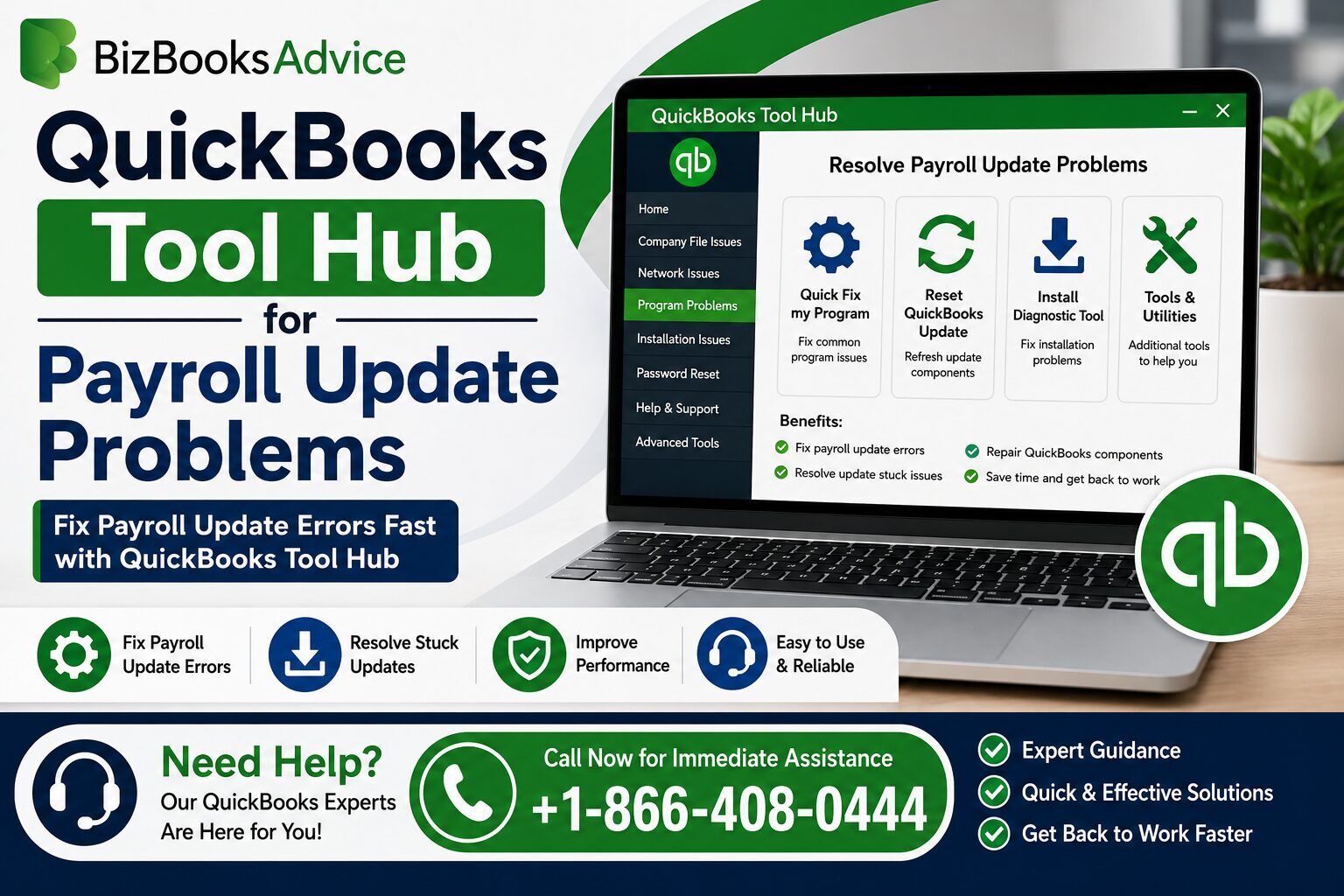
The QuickBooks Tool Hub can help troubleshoot several QuickBooks Desktop problems that may prevent payroll updates from downloading or installing correctly. For payroll update issues, the most useful option is generally Quick Fix my Program, available under Program Problems. It can close background QuickBooks processes and perform a quick program repair. Intuit also recommends using the Tool Hub as part of troubleshooting certain 15XXX payroll-update errors.
If QuickBooks payroll remains stuck after using the Tool Hub, the problem may involve the QuickBooks File Copy Service (FCS), damaged update components, firewall settings, Windows files, permissions, or another installation-related issue.
What Is the QuickBooks Tool Hub?
QuickBooks Tool Hub is a Windows utility designed to provide several troubleshooting tools in one place. Instead of manually searching for individual utilities, users can select a category based on the problem they are experiencing.
According to Intuit, the Tool Hub includes areas such as Company File Issues, Network Issues, Program Problems, Installation Issues, Password Reset, Help & Support, and Advanced Tools.
For payroll update problems, the Program Problems section is particularly useful because it provides Quick Fix my Program.
The tool does not automatically solve every payroll update failure. However, it is a practical first troubleshooting step when QuickBooks is unable to update, freezes during an update, or displays certain update-related errors.
Why Use QuickBooks Tool Hub for Payroll Update Problems?
A payroll update can fail for several different reasons. For example, Intuit identifies issues such as missing update components, firewall restrictions, damaged Windows files, incorrectly mapped Shared Download locations, disabled QuickBooks File Copy Service, and digital-signature verification problems among the causes of certain 15XXX errors.
The Tool Hub can help address some program-level problems without immediately requiring a complete QuickBooks reinstallation.
It is especially useful when:
- QuickBooks payroll updates stop responding.
- A payroll update repeatedly fails.
- QuickBooks becomes slow or unresponsive during an update.
- Background QuickBooks processes interfere with updating.
- A recent QuickBooks update did not install correctly.
- You receive certain 15XXX or related update errors.
- QuickBooks needs a basic program repair before another update attempt.
However, if the underlying problem is your payroll subscription, internet configuration, firewall, FCS service, or a damaged installation, additional troubleshooting may still be required.
How to Use QuickBooks Tool Hub for Payroll Update Problems
Step 1: Close QuickBooks Desktop
Before opening the Tool Hub, close QuickBooks Desktop and any company files.
This is important because some Tool Hub utilities need QuickBooks to be completely closed before they can repair background processes or program components.
If QuickBooks appears to be closed but continues running in the background, give Windows a moment before proceeding.
Step 2: Install or Open QuickBooks Tool Hub
Download and install the latest version of QuickBooks Tool Hub from a trusted source.
Intuit's current guidance recommends using Tool Hub on Windows 11 64-bit for the best experience. Once installed, you can open it from the Windows desktop or search for "QuickBooks Tool Hub" in Windows.
If you already have Tool Hub installed, open it and check its version from the Home tab.
Because software versions can change, use the current Tool Hub release available from Intuit rather than relying on an old installer.
Step 3: Select Program Problems
Once Tool Hub opens:
- Select Program Problems.
- Look for Quick Fix my Program.
- Select it.
- Allow the utility to complete its process.
- Reopen QuickBooks Desktop.
Quick Fix my Program is designed to shut down lingering QuickBooks background processes and perform a quick repair of the program. Intuit specifically recommends this option when troubleshooting certain QuickBooks Desktop payroll-update errors.
Step 4: Try the Payroll Update Again
After Quick Fix my Program finishes, open QuickBooks Desktop and try downloading the payroll update again.
For QuickBooks Desktop Payroll, the normal process is to go to:
Employees → Get Payroll Updates
Then select the option to download the available payroll update.
Intuit notes that QuickBooks Desktop Payroll requires an active payroll subscription for tax-table updates, while QuickBooks Online Payroll handles tax-table updates automatically.
If the update works after running Quick Fix, the problem may have been related to a temporary program process or damaged program state.
QuickBooks Tool Hub Didn't Fix the Payroll Update
If Quick Fix my Program does not resolve the issue, don't repeatedly run the same tool. Move through the troubleshooting process systematically.
Your next step depends on what happens when you attempt the payroll update.
If the update fails immediately
Check your internet connection, QuickBooks registration, payroll subscription status, and security software.
If the update downloads but will not install
The issue may involve damaged components, Windows permissions, the FCS service, or the QuickBooks installation.
If the update gets stuck at a percentage
Allow a reasonable amount of time first. Then restart QuickBooks and retry the update. If the same point repeatedly causes the failure, investigate update components and program-related issues.
If an error code appears
Record the exact error code before trying random fixes. Different payroll errors can have different causes.
Check QuickBooks File Copy Service
One important cause of certain QuickBooks payroll update errors is the QuickBooks File Copy Service (FCS) being disabled. Intuit includes disabled FCS among the possible causes of 15XXX update errors.
To check the service:
- Close QuickBooks Desktop.
- Press Windows + R.
-
Type
services.msc. - Press Enter.
- Look for the QuickBooks-related File Copy Service.
- Check whether the service is running.
- Review its startup configuration.
- Restart the service if appropriate.
- Open QuickBooks and attempt the payroll update again.
Be careful when changing Windows services. If you're unsure which service belongs to your QuickBooks installation, don't disable unrelated Windows services.
If you're still dealing with QuickBooks payroll update problems, a more targeted troubleshooting approach can help identify whether FCS, update components, permissions, or security settings are responsible.
Reset QuickBooks Desktop Update Components
If Quick Fix doesn't solve the issue, resetting the update components may help.
For certain 15XXX errors, Intuit recommends deleting the QuickBooks Components folder and then resetting the QuickBooks Desktop update. The exact folder path depends on your installed QuickBooks version.
The general process is:
- Close QuickBooks Desktop.
- Navigate to the QuickBooks Components folder under the ProgramData directory.
- Delete the Components folder as instructed for your specific QuickBooks version.
- Reopen QuickBooks.
- Go to Help → Update QuickBooks Desktop.
- Select Update Now.
- Select Reset Update.
- Choose Get Updates.
- Restart QuickBooks after the download completes.
- Try the payroll update again.
This should be approached carefully because the folder path varies between QuickBooks versions.
Run QuickBooks as Administrator
Windows permissions can sometimes interfere with QuickBooks update operations.
Try closing QuickBooks, right-clicking the QuickBooks Desktop icon, and selecting Run as administrator.
Then attempt the update again.
Intuit lists running QuickBooks as an administrator as an initial troubleshooting step for certain 15XXX update errors.
If the update works only when QuickBooks is run as administrator, you may have a Windows permissions or security configuration that needs further investigation.
Check Firewall and Security Software
Your firewall or security software can sometimes prevent QuickBooks from accessing the resources needed to download payroll updates.
Intuit specifically identifies firewall settings as one possible cause of certain 15XXX errors.
Before making security changes, determine whether your security software is actually blocking QuickBooks.
Avoid permanently disabling antivirus protection simply to force an update. Instead, use appropriate exclusions or firewall rules according to your security software's documentation.
If the update starts working after a security configuration change, review the setting carefully and restore appropriate protection.
Check Your Payroll Subscription and Service Key
Not every payroll update failure is caused by the Tool Hub.
For PSXXX payroll errors, Intuit recommends checking the payroll service subscription and service key. A QuickBooks Desktop payroll service should show the appropriate service information and an active status.
You can check this from QuickBooks Desktop by going to:
Employees → My Payroll Service → Manage Service Key
Review the service name and status.
If your payroll subscription is not active or the service key information is incorrect, fixing the program itself won't necessarily solve the update problem.
Check Whether QuickBooks Desktop Is Updated
An outdated QuickBooks Desktop release can create problems when downloading or installing payroll updates.
To check for a program update:
Help → Update QuickBooks Desktop → Update Now → Get Updates
After downloading an update, restart QuickBooks and try the payroll update again.
Keeping QuickBooks Desktop current is particularly important when troubleshooting payroll because payroll tax tables and program components need to work together correctly.
Use the Install Diagnostic Tool When Necessary
If the problem appears to be related to the QuickBooks installation rather than the payroll service itself, additional repair tools may be appropriate.
Intuit recommends using QuickBooks repair utilities for installation-related problems, and the Tool Hub provides access to tools intended to diagnose and repair common QuickBooks program issues.
This can be useful when:
- QuickBooks will not update correctly.
- Components appear damaged.
- QuickBooks crashes during an update.
- Windows components used by QuickBooks are damaged.
- A previous installation or update was interrupted.
If a repair does not resolve the problem, reinstalling QuickBooks may eventually be necessary.
QuickBooks Tool Hub vs. Other Payroll Update Fixes
The Tool Hub should be viewed as one part of the troubleshooting process, not a universal fix.
For example, Quick Fix my Program can address program-level problems, while checking FCS addresses a service-level issue. Resetting the Components folder addresses potentially damaged update components, while checking the payroll service key addresses subscription-related problems.
This distinction matters because repeatedly running Tool Hub will not fix an inactive payroll subscription or a firewall that continues blocking the download.
A better troubleshooting approach is to identify where the update is failing and then use the appropriate solution.
What If QuickBooks Payroll Update Still Doesn't Work?
If you've completed the basic Tool Hub steps and the payroll update continues failing, document what you're seeing.
Record:
- The exact error message.
- Any error code.
- Your QuickBooks Desktop version.
- Whether the update downloads or fails immediately.
- Whether the issue happens with every company file.
- Whether Quick Fix changed anything.
- Whether FCS is running.
- Whether the problem started after a recent QuickBooks update.
- Whether Windows or security software was recently changed.
Having these details makes troubleshooting much faster.
If you've already tried Quick Fix, update reset, and the basic service checks but still can't complete the payroll update, you can contact the BizBooksAdvice team at +1-866-408-0444 for guidance in identifying the next appropriate step.
Common Questions About QuickBooks Tool Hub and Payroll Updates
Can QuickBooks Tool Hub fix payroll update errors?
It can help with certain program-related problems that interfere with payroll updates. Quick Fix my Program is specifically recommended by Intuit as part of troubleshooting certain 15XXX update errors. However, it does not fix every possible payroll issue.
Which Tool Hub option should I use for payroll update problems?
Start with Program Problems → Quick Fix my Program when the issue appears to be related to QuickBooks Desktop itself. If the problem involves installation components, networking, or another specific issue, a different Tool Hub category may be appropriate.
Can Tool Hub fix QuickBooks Error 15243?
Tool Hub can be part of the troubleshooting process, particularly when the error is related to program processes or update components. Error 15XXX problems can also involve FCS, firewall settings, missing components, Windows files, or digital-signature verification, so additional steps may be necessary.
Why is QuickBooks payroll update stuck after using Tool Hub?
The Tool Hub may repair the QuickBooks program without resolving the underlying cause of the update failure. Check FCS, update components, firewall settings, payroll subscription status, and the QuickBooks Desktop release if the problem continues.
Does QuickBooks Online need the Tool Hub for payroll updates?
No. The Tool Hub is intended for QuickBooks Desktop. Intuit states that QuickBooks Online Payroll tax tables are updated automatically, so users don't manually download tax-table updates in the same way as QuickBooks Desktop Payroll users.
Should I reinstall QuickBooks if Tool Hub doesn't work?
Not immediately. Reinstallation is generally a later troubleshooting option after checking program updates, Tool Hub repairs, update components, security settings, and other likely causes. Intuit lists reinstalling QuickBooks as an option when other troubleshooting steps do not resolve certain update errors.
Final Thoughts
The QuickBooks Tool Hub for Payroll Update Problems is a useful starting point when QuickBooks Desktop payroll updates fail, freeze, or behave unexpectedly. The Quick Fix my Program utility can clear lingering processes and perform a basic program repair, but it should not be treated as a one-click solution for every payroll update error.
For persistent problems, work through the likely causes logically: check the QuickBooks release, payroll subscription, FCS, update components, Windows permissions, firewall configuration, and installation health.
For readers looking for more detailed QuickBooks payroll update troubleshooting, the related guide can provide additional information about payroll update errors and their possible solutions. QuickBooks payroll update troubleshooting
If the issue continues after you've worked through the appropriate troubleshooting steps, +1-866-408-0444 is available for assistance from the BizBooksAdvice team. The goal is to identify the actual cause rather than repeatedly reinstalling or changing settings without knowing what is failing.